REAPER MCP
Hand the tedious parts of REAPER to your AI assistant.
Describe the job in plain English, such as routing a sidechain, tightening a drum part or checking your master's loudness, and the AI assistant you already use does it in your open project. You still make every creative call, and you can take back any change it makes with one Ctrl+Z.
Free and open source / Windows, macOS and Linux / Works with Claude, the ChatGPT desktop app, Gemini, Copilot and Cursor / v1.8.0
What it does
Say it the way you'd say it to an engineer. Your assistant does the work in REAPER, in the project you have open.
Routing and sidechains
A sidechain takes a send, a channel setting and a compressor adjustment, each in a different window. Ask once, and your assistant adds ReaComp to the bass, sends the kick to its sidechain input on channels 3 and 4, and sets the compressor to listen to it. Drum buses and parallel compression work the same way.
"Set up sidechain compression from the kick to the bass"
MIDI cleanup
Tighten a sloppy part, add swing, loosen up a robotic hi-hat, snap a line into key or turn block chords into a strum. You can aim each change at a range of notes, a few bars or one channel, so the hats move while the kick stays where it is.
"Quantize the hi-hats to sixteenths with a little swing, and leave the kick alone"
Loudness checks
Your assistant measures the master's integrated loudness and loudness range the way REAPER's own loudness window does, plus its true peak. It can compare those figures with a streaming service's target, tell you whether the low end is mono, and show how the chorus's tonal balance differs from the verse's.
"Is my master too loud for Spotify, and does anything clip between samples?"
Takes and comping
Your assistant can switch a vocal to another comp lane, split and fade at the cursor, explode a multi-take item into its takes, or crop an item to the take you picked.
"Switch the lead vocal to comp lane 2"
Dialogue and podcasts
Tell your assistant where your voice recordings are, and it places each one on the track and at the time you want. One user put together a spoken dialogue this way, with two voices on alternating tracks and a half-second gap after each line.
"Line up these six voice recordings on two tracks, half a second apart"
Questions about a session
Open a collaborator's project and ask what's on each track, which plugins sit where and how they're set. Your assistant reads the session for you, so you don't have to open every FX window.
"What is on the vocal chain, and what is the compressor doing?"
Safety and privacy
Your assistant does the clicking. The decisions about your music stay with you.
- Nothing happens until you ask. Your assistant changes your project only when you ask it to.
- Every change is one undo step. Each change goes into REAPER's own undo history under the name of the tool that made it, so Ctrl+Z takes back one change at a time.
- It never saves unless you ask. Close the project without saving, and every change the assistant made is gone.
- It leaves your session where you had it. When your assistant adds audio, duplicates an item or measures, your track selection, time selection and edit cursor end up where you left them.
- Your audio stays on your computer. REAPER MCP talks to REAPER through files on your own machine and makes no network connections. Your assistant sees track names, settings and measurements, and those go to the AI model you use, the same as anything you type to it.
- It doesn't judge how your mix sounds. It can tell your assistant how loud a mix is, where its energy sits and how wide it is. Whether the vocal sounds harsh is still your call.
Before a big AI-driven change, save a copy first or lean on REAPER's project auto-backups, the same as you would before any major edit.
Supported AI apps
REAPER MCP connects through MCP, the standard that AI apps use to work with other software. It works with Claude Desktop, the ChatGPT desktop app and Codex, Gemini CLI, GitHub Copilot, Cursor and other apps that run local MCP servers (full list).
It's free and open source under the MIT license. It needs no API key and no subscription of its own, because it works inside the AI app you already have. It runs on Windows, macOS and Linux.
Testing and support
Live testing
Before every release, we run a live test suite inside REAPER. Version 1.8.0 passed 318 checks against REAPER 7.79, and afterward we compared the test project with how it started to prove nothing was left behind.
Measurement accuracy
The loudness figures are REAPER's own. The measurement tools pass the EBU's synthetic compliance signals for loudness, true peak and loudness range, within the EBU's tolerances.
Bug reports
We answer every issue and fix what is broken. The contributor list credits the people who reported or diagnosed a problem, not only the people who sent code.
Release history
Each release has a changelog entry that says what changed and what, if anything, you need to do.
The changelog, the release history and the automated tests are public in the REAPER MCP repository.
How it works
REAPER can't take requests from other programs on its own, so REAPER MCP has two parts. Your AI app runs the MCP server, which turns your requests into REAPER actions. A small bridge script runs inside REAPER and carries those actions out in your open project, so keep REAPER open with the project you want to work on.
Setup
Requirements
- REAPER (any recent version; live-tested through 7.79) on Windows, macOS, or Linux
- Python 3.10 or newer, handled for you by
uvorpipxin the steps below - An AI app that can run a local MCP server, such as Claude Desktop, the ChatGPT desktop app or Codex, Gemini CLI, GitHub Copilot or Cursor (full list)
Setup with your AI assistant
If your app has an agent that can run terminal commands, paste this in. It handles the install and the settings, then walks you through the one step REAPER needs from you. If your app can't run commands, follow the steps below instead.
Set up the TwelveTake REAPER MCP server for me.
- It's a Python package on PyPI called twelvetake-reaper-mcp. Install it so it can
  run (uvx or pipx) and add it to my MCP client config as a server named "reaper".
- REAPER needs a small bridge script. Run "uvx twelvetake-reaper-mcp --install-bridge"
  to copy it into my REAPER Scripts folder. Ask me first whether REAPER should start
  the bridge by itself at launch, and if I say yes, add --autostart to that command.
- Then tell me the one manual step: in REAPER, open Actions -> Show action list ->
  Load ReaScript, choose reaper_mcp_bridge.lua, and Run it. I should see a
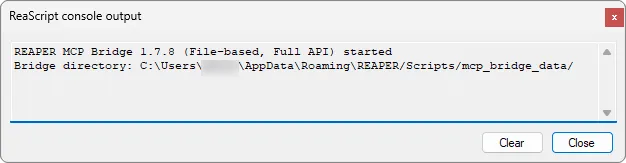
  "REAPER MCP Bridge ... started" message in REAPER's console.
- Confirm it works by asking how many tracks are in my project.
Manual setup
uv, which provides the uvx command and manages Python for you. Install it once from docs.astral.sh/uv. You don't install Python separately.
Step 1: Install the bridge in REAPER
One command installs the bridge script and the small analyzer plugin that the measurement tools use, each in the folder REAPER expects, on any platform. If it finds a different copy of the bridge, it backs that copy up first. It writes nothing else:
uvx twelvetake-reaper-mcp --install-bridgeThen load it in REAPER:
-
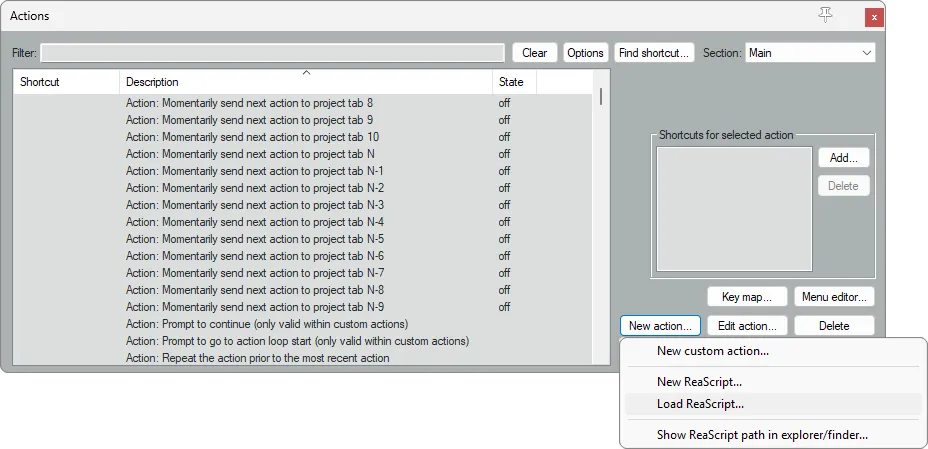
1. Open Actions → Show action list.

-
2. Click New action → Load ReaScript.
-
3. Select
reaper_mcp_bridge.luain the Scripts folder and click Open.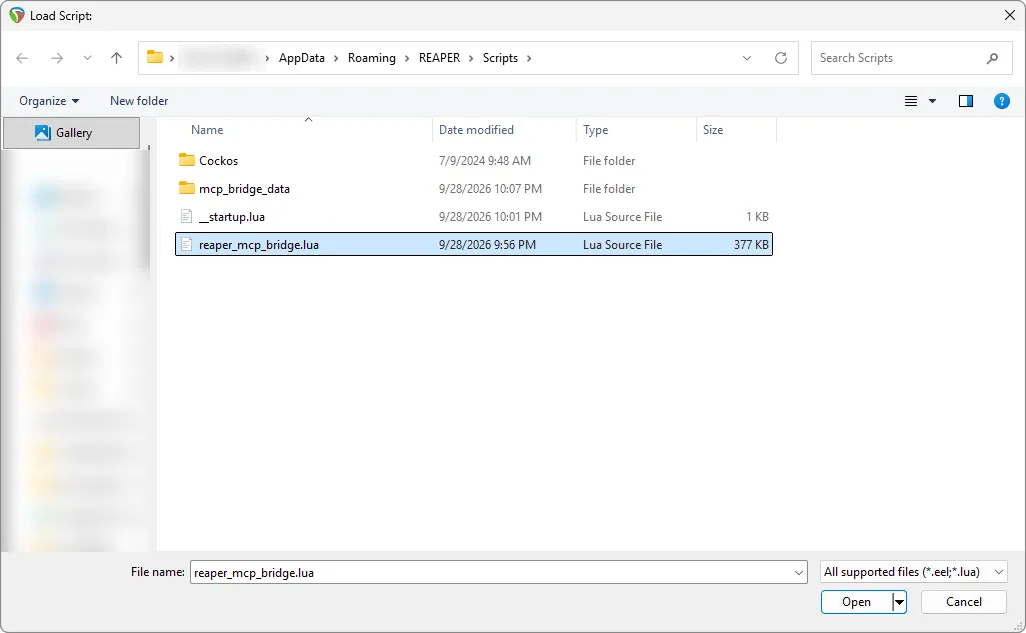
-
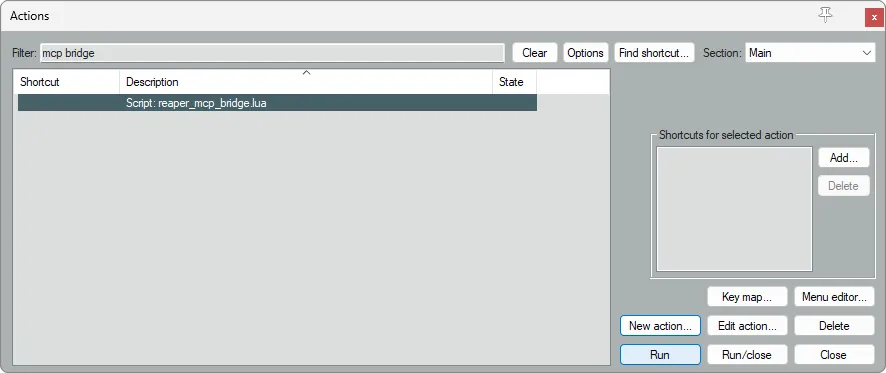
4. With the script selected in the action list, click Run.
-
5. REAPER's console confirms the bridge is running.
Next time, type mcp bridge in the action list's filter box to find it. To have REAPER start the bridge by itself every time it launches, add --autostart:
uvx twelvetake-reaper-mcp --install-bridge --autostartThat adds a marked block to __startup.lua in REAPER's Scripts folder, backing the file up first, and leaves anything else in it alone. --remove-autostart takes the block out again.
Use ReaPack? Install the bridge from there instead. Open Extensions → ReaPack → Import repositories and paste this address:
https://github.com/TwelveTake-Studios/reaper-mcp/raw/main/index.xml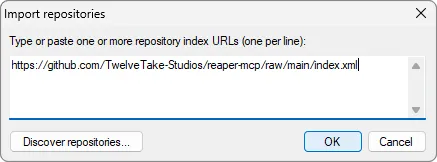
Then open Extensions → ReaPack → Browse packages, find TwelveTake REAPER MCP bridge, right-click it, choose Install, and click OK:
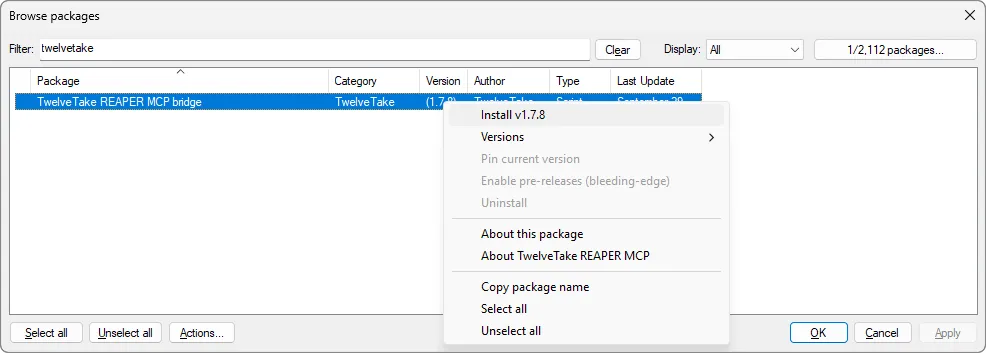
ReaPack adds the script to the action list and installs the analyzer. Run the script from there as in steps 4 and 5 above. To have REAPER start the ReaPack copy at launch, run uvx twelvetake-reaper-mcp --autostart.
To place it by hand instead, download reaper_mcp_bridge.lua from the REAPER MCP repository, copy it into your REAPER Scripts folder, and load it as above. For the measurement tools, also copy twelvetake_mcp_analyzer.jsfx into Effects/TwelveTake, next to the Scripts folder:
Windows: %APPDATA%\REAPER\Scripts\
macOS:   ~/Library/Application Support/REAPER/Scripts/
Linux:   ~/.config/REAPER/Scripts/
Step 2: Add the server to your AI app
Nearly every AI app uses the same JSON for this: an mcpServers entry with a command and its args. Add this to your app's MCP settings:
{
  "mcpServers": {
    "reaper": {
      "command": "uvx",
      "args": ["twelvetake-reaper-mcp"]
    }
  }
}
Where you put it depends on your app:
- Claude Desktop: Settings → Developer → Edit Config opens
claude_desktop_config.json(in%APPDATA%\Claude\on Windows,~/Library/Application Support/Claude/on macOS). Paste the block above, save, then fully quit and reopen Claude. - Gemini CLI: add the block above to
~/.gemini/settings.json: same shape. - Cursor: Settings → MCP → Add, or paste the block above into
~/.cursor/mcp.json: same shape. - Devin Desktop (formerly Windsurf): edit
~/.config/devin/mcp_config.json(%AppData%\devin\mcp_config.jsonon Windows): same shape. - VS Code: Command Palette → "MCP: Add Server," or edit
.vscode/mcp.json. VS Code uses a top-levelserverskey with"type": "stdio"instead ofmcpServers.
The ChatGPT desktop app and Codex share one settings file, ~/.codex/config.toml, which uses a different format. With Codex CLI installed, run codex mcp add reaper -- uvx twelvetake-reaper-mcp, or add this to the file:
[mcp_servers.reaper]
command = "uvx"
args = ["twelvetake-reaper-mcp"]
Using a different app? Add the same command and args wherever it lists MCP servers. After adding it, fully quit and reopen the app.
Step 3: Check it's working
With REAPER open and the bridge running, ask your assistant: "How many tracks are in my project?" A number back means everything's connected.
Updates
uvx keeps using the version it first downloaded, so updating takes one command. It fetches the newest release and copies its bridge into REAPER's Scripts folder, and the running bridge reloads itself. You don't have to do anything in REAPER:
uvx twelvetake-reaper-mcp@latest --install-bridgeIf you installed with pipx, run pipx upgrade twelvetake-reaper-mcp and then twelvetake-reaper-mcp --install-bridge. With ReaPack, Extensions → ReaPack → Synchronize packages fetches the new bridge. It runs the next time the bridge starts, or right away if you run uvx twelvetake-reaper-mcp --reload-bridge.
Either way, restart your AI app so it picks up the new server too. If you're updating from 1.7.7 or older, run the bridge in REAPER once more after installing it. From 1.7.8 on, it reloads by itself.
Troubleshooting
- No "Bridge … started" message? Run
reaper_mcp_bridge.luafrom Actions → Show action list, and check that the file is in your Scripts folder. - "Not started: another copy is already running"? The bridge was already running, so you don't need to do anything. Only one copy runs at a time.
- Your assistant can't see the "reaper" server? Fully quit and reopen your app after editing its settings, and check that the JSON is valid (a stray trailing comma is the usual culprit).
- "Cannot connect to REAPER"? Make sure REAPER is open and the bridge is running this session. It stops when REAPER closes, unless you set it to start with REAPER (
--autostart).
Feature list
You don't call these yourself. You ask in plain language, and your assistant picks the right ones.
Show all features
Tracks
Create, rename, delete, volume / pan / mute / solo, phase, width, color, folders, record-arm, inputs, and metering.
FX & plugins
Add, remove, reorder, and bypass any plugin; read and set any parameter; save and load presets.
ReaEQ bands
Dedicated EQ band control in real units (Hz, dB, Q), handling ReaEQ’s non-linear curves correctly.
Takes & comping
Per-take FX, multi-take workflows, explode / crop, and REAPER 7 fixed-lane comping.
Routing & sidechain
Sends, receives, channel-specific routing, and complete sidechain setup in a single call.
Automation
Track and FX-parameter envelopes: add and edit points, set automation modes, arm for recording.
MIDI
Create items, add notes individually or in batches, then reshape them: transpose, quantize (with swing), humanize, snap to a scale, stretch, legato, strum, velocity ramps, and overlap cleanup.
Audio items
Import, split, duplicate, fade, position, mute, and copy / paste items.
Markers & regions
Add, edit, and navigate markers and regions, and render by region.
Transport
Play, stop, record, loop, and move the edit cursor.
Project & rendering
Tempo, time signature, save / open, project summary, and render to audio.
Mixing helpers
One-call mastering chain, parallel (NY) compression, and submix buses.
Measurement
Integrated, short-term and momentary loudness, loudness range and true peak, plus the octave-band spectrum and stereo correlation, for the master, a track or an item.
The complete, current tool reference is in the REAPER MCP repository.
Limitations
- The mastering chain is a starting point. It inserts ReaEQ, ReaComp, ReaEQ and ReaLimit on the master track at their default settings, and you or your assistant set them from there.
- Third-party plugins take raw values. Your assistant can read and set any plugin parameter, but outside ReaEQ's bands the values are on REAPER's 0 to 1 scale rather than in dB or Hz.
FAQ
What is MCP?
MCP (Model Context Protocol) is the standard that AI apps use to connect to other software. REAPER MCP is the connection between your AI app and REAPER. Once it's set up, you ask in plain language and your assistant does the work.
Do I need to know how to code?
No. If your assistant can run commands, it can do the setup for you from the prompt above. Otherwise you'll paste a couple of commands into a terminal, add one block to your AI app's settings, and run one script inside REAPER, all shown in the setup steps.
Does REAPER need to be open?
Yes. Your assistant works on the project you have open, and the bridge script has to be running. Start it each session, or set it to start with REAPER.
Which platforms does it run on?
Windows, macOS and Linux: anywhere REAPER and Python run. The bridge works the same on all three.
Can I use this with ChatGPT?
Yes, through the ChatGPT desktop app or OpenAI's Codex, which run local MCP servers like this one. ChatGPT in a web browser connects only to servers hosted online, so it can't start this one. It also works with Claude Desktop, Gemini CLI, GitHub Copilot, Cursor and the other apps on our MCP servers page.
Why does measuring the master mark my project as modified?
To measure true peak and the spectrum, it briefly adds a small analyzer plugin to the master and removes it afterward. REAPER marks a project as modified whenever a plugin goes on the master, even though nothing in your project has changed. Measuring a track or an item doesn't do this.
Does it eat up my assistant's context?
Less than it used to. Every MCP server sends your assistant a description of its tools at the start of every turn, and with 179 tools that adds up. Version 1.7.0 cut that by about 16%, which is roughly 4,000 words of your assistant's working memory handed back to you on every message. Reading MIDI is the other place it matters. A busy four-bar drum pattern can come back as thousands of words of note data, so your assistant can ask for just the parts it needs.
Is it still being worked on?
Yes. The latest release is 1.8.0, from September 29, 2026, and the changelog on GitHub lists every release.
Is it really free?
Yes. It's free and open source under the MIT license. If it saves you time, you're welcome to buy us a coffee or support us on Ko-fi.
Want an AI wired into your own software?
We build custom MCP servers to order, whether the software is a DAW, a design tool, or something internal. Describe the workflow and we'll scope it.
Get a custom MCP server built